

HydraSDR RFOne Troubleshooting Guide
This page provides some quick tips on troubleshooting problems.
Most common problem to use HydraSDR RFOne at full speed 10MSPS(320Mbit/s) (and even 5MSPS / 2.5MSPS) are mainly related to USB controller or/and CPU.
We created a set of command line utilities to help troubleshooting the performance problems.
Windows:
- Performance problems:
- Download the latest release of the tools package
- Open a console (cmd.exe) and run
hydrasdr_rx -r NUL -t 0 - Leave it running for 30 seconds, then Ctrl+C If the average throughput is bellow 10.0 MSPS then either your USB controller has problems or you CPU can’t process the data.
- Possible solutions:
- Use another USB port
- Update your USB drivers (Prefer OEM drivers to generic ones)
- See link for more details
- Check your anti-virus or any other CPU heavy task
- Use a PCIe USB2.0/3.0 controller
How to use SDR++ with HydraSDR RFOne on Windows
System Requirements
- Windows 10 or 11 (64-bit) required – older Windows 8.1 is no longer supported by Microsoft and probably won’t work properly.
- Both Windows 10/11 Home and Pro versions are supported.
Download the Correct SDR++ Version
You must use the HydraSDR fork of SDR++, not the standard version.
Download from: click here
Choose either:
- Nightly build (recommended): click here
- Stable v1.2.1dev: click here
Both have been tested and work identically on Windows 10 x64 and Windows 11 x64.
Installation and Setup
1. Extract SDR++to a directory of your choice
– Extract to a location with a short path (e.g., C:\Users\[YourUsername]\Downloads\)
– Avoid paths longer than 260 characters to prevent Windows issues
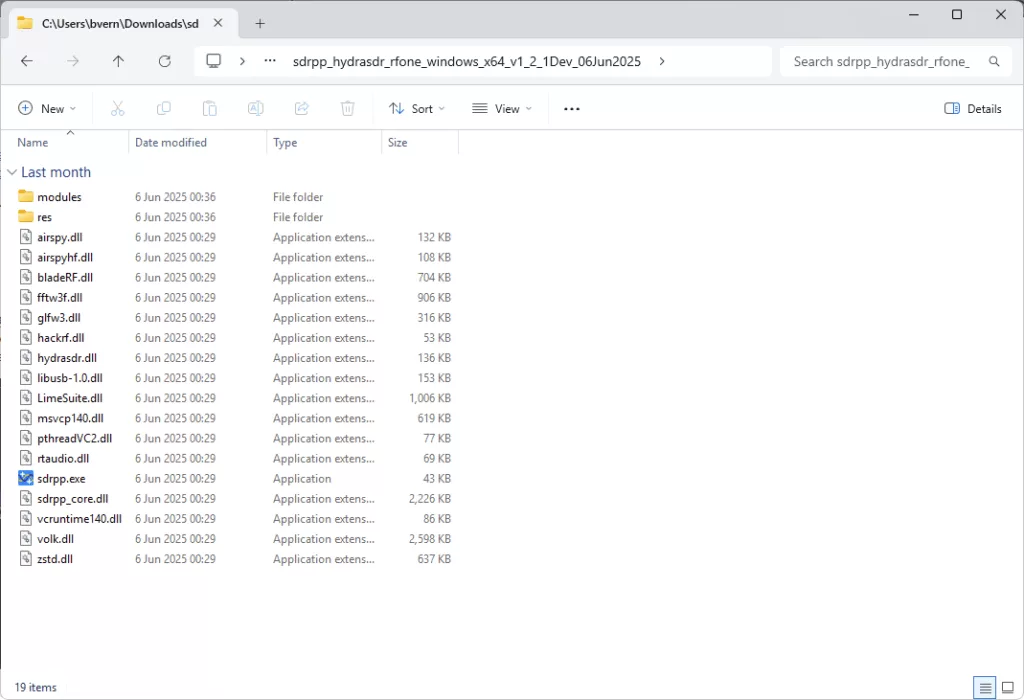
– You should see the following files after extraction of Click Here
2. Start SDR++ (before connecting the device)
3. Check Source Menu: Go to Source and you should see “HydraSDR RFOne” in the list
Important: This option should appear even when the device is NOT connected to your PC
If you don’t see “HydraSDR RFOne” in the source list, you’re using the wrong SDR++ version
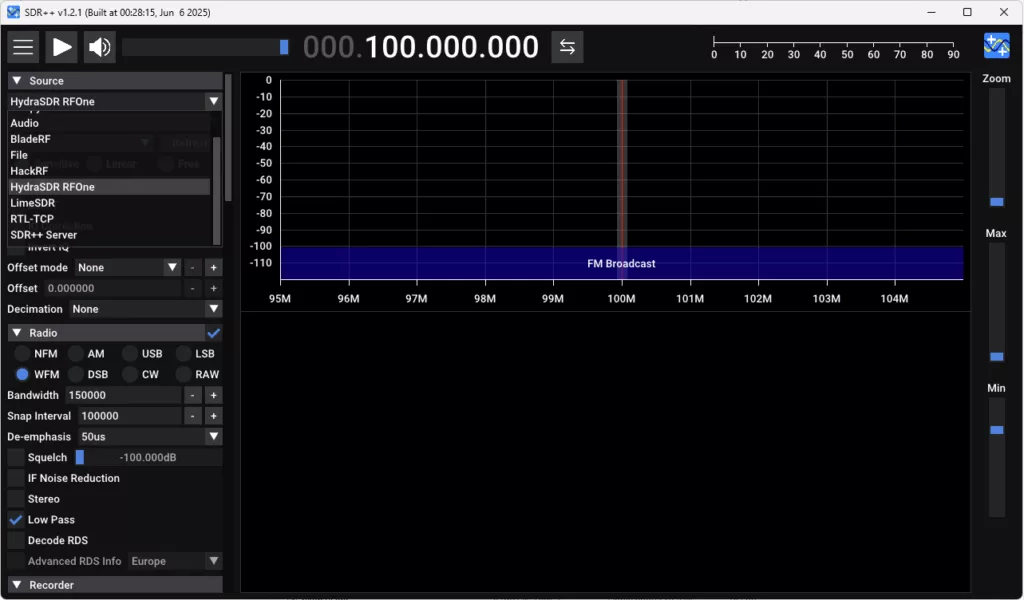
4. Select HydraSDR RFOneas your source
5. Connect the device: Plug your HydraSDR RFOne into your computer using the USB-C to USB-A cable.
Use a USB 3.0 port if available for optimal performance.
The device should be recognized automatically without requiring driver installation on Windows 10/11.
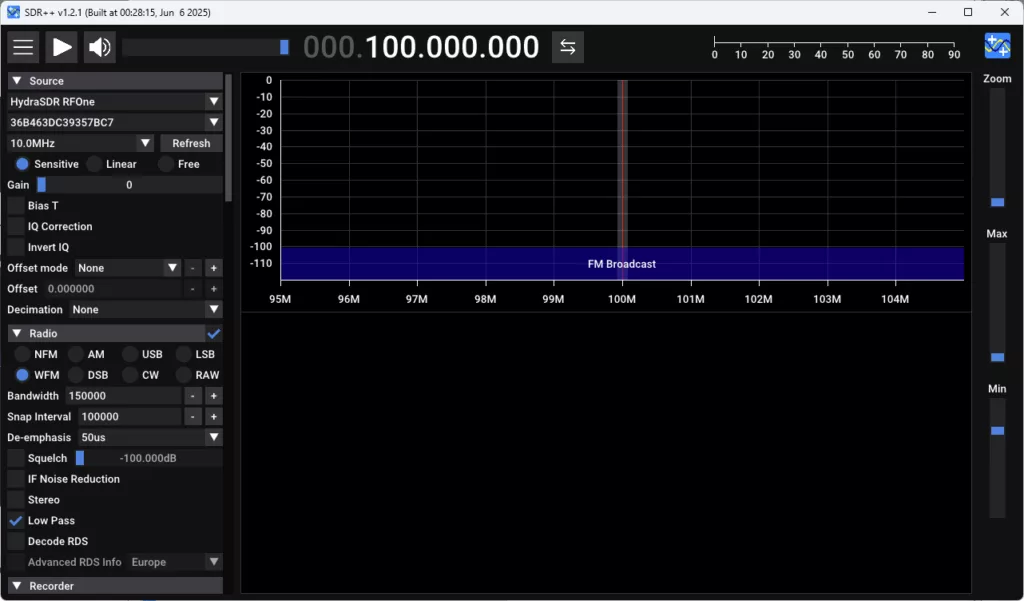
6. Click Refresh– you should now see the Serial Number appear
7. Configure settings:
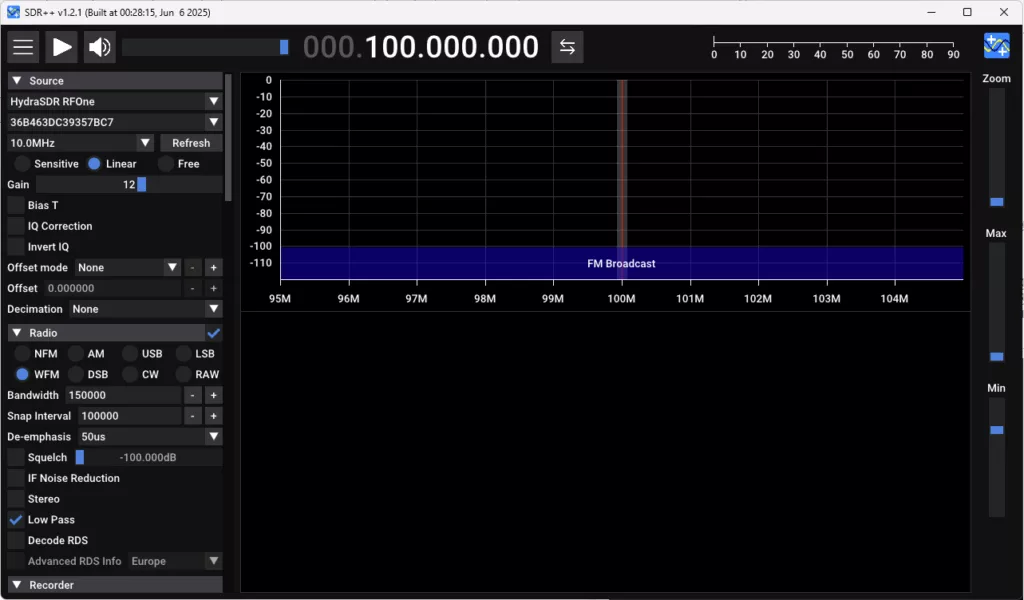
- Bandwidth: 10MHz (default)
- Set Gain to Linear 12(recommended starting point)
8. Connect your antennato the ANT
The antenna must have an SMA male connector to mate with the device’s SMA female port.
9. Press the Play button
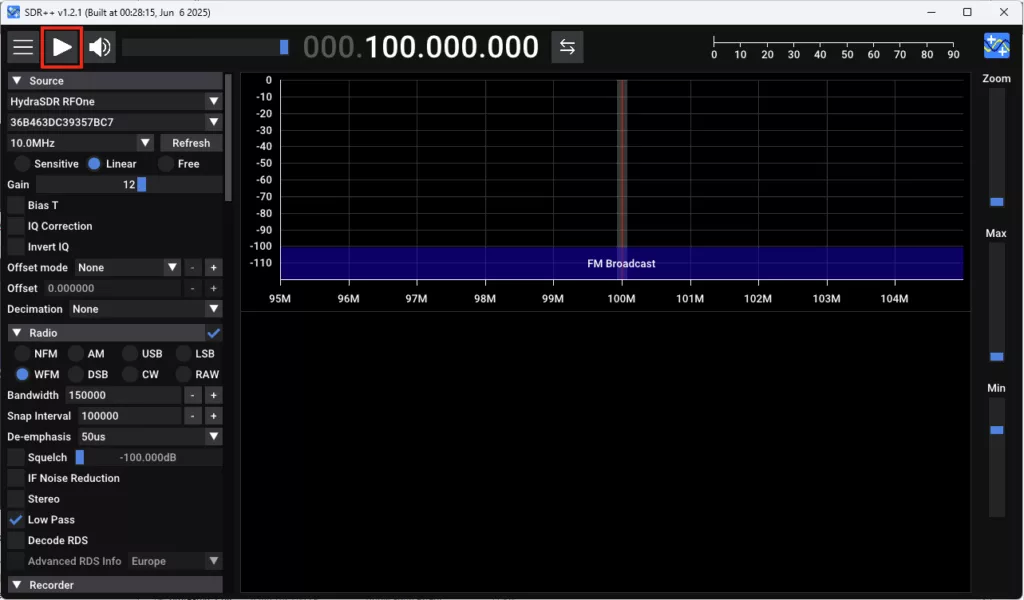
10. Example: FM Radio Reception
- Configure for FM: SetWFM mode, Bandwidth to 250000, enable Stereo and RDS decoding
- Find a station: Tune to any FM frequency between 88.1 to 107.9 MHz
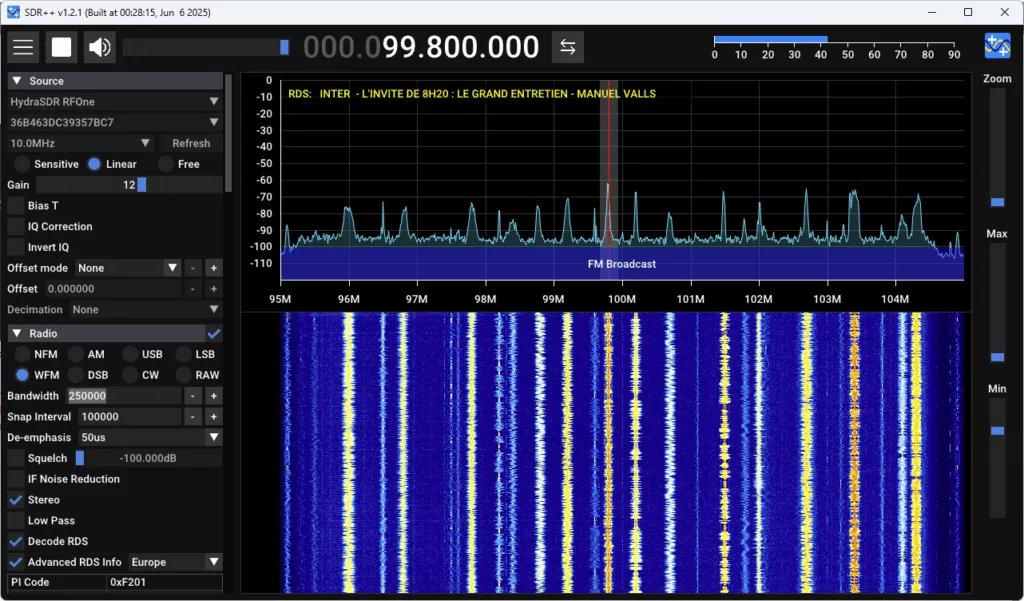
- You should now hear the FM audio
Troubleshooting
If HydraSDR RFOne doesn’t appear in the Source List, refer to the nightly build documentation for troubleshooting details.
Linux (Debian/Ubuntu):
Ubuntu users: 22.04 / 24.04 LTS is highly recommended.
Building HydraSDR RFOne, gr-osmosdr and gqrx:
- Download the Host Tools repository, compile it, install it
- Download the gr-osmosdr repository, compile it, install it
- Download the gqrx repository, compile it, install it
- Get pulseaudio using standard Arch way
- Configure pulseaudio (add user and group, such things)
Performance problems:
- Build the host tools following “How to build the host software on Linux:” click here
- Open a shell and run
hydrasdr_rx -r /dev/null -t 0 - Leave it running for 30 seconds, then Ctrl+C If the average throughput is bellow 10.0 MSPS then either your USB controller has problems or you CPU can’t process the data.
- Possible solutions:
- Use another USB port
- Update your kernel
- Use a PCIe USB2.0/3.0 controller
OSX:
For Gqrx, gr-osmosdr and HydraSDR RFOne see click here
Performance problems:
- Open a shell and run
hydrasdr_rx -r /dev/null -t 0 - Leave it running for 30 seconds, then Ctrl+C If the average throughput is bellow 10.0 MSPS then either your USB controller has problems or you CPU can’t process the data.
- Possible solutions:
- Use another USB port
- Update your kernel
- Use a PCIe USB2.0/3.0 controller
- See also OS X: Identifying USB ports on your Mac and test different USB port if you have speed issue at 10MSPS
- Open a shell and run
VMWare Linux
Unable to enumerate product, serial, and manufacturer when connected to VMWare VM (Linux)
Fix to apply
usb.quirks.device0 = “0x1d50:0x60a1 skip-setconfig”
Problematic Configurations
Post here only if minimum hardware requirements match:
- 3rd gen Intel i3 2.4 GHz CPU or equivalent
- 2GB of RAM (to run your own OS, HydraSDR RFOne barely needs 1MB of memory)
- High speed USB 2.0/3.0 controller
Cheap StarTech.com 4 Port PCI Express PCIe SuperSpeed USB 2.0/3.0 Controller (PEXUSB3S4V) which can be found on following links:
More feedback are welcome about those cheap PCIe USB2.0/3.0 controller to ensure they work fine with HydraSDR RFOne + Host Tools (especially with Windows, Linux & MacOS).
How to check external clock is active
The external REF clock frequency “CLKIN” is “hard coded in firmware” to 10MHz and it shall be connected and stable before to power on or reset of HydraSDR RFOne to switch on it as the detection mechanism is only done at startup, I do not think it is a big issue. For information you have also a convenient way to reset HydraSDR RFOne with a dedicated API and also the tool hydrasdr_reset You can check the external CLKIN is active with following steps: To check if the external clock was active while the HydraSDR RFOne was powered on the following command can be used:
hydrasdr_si5351c -n 0 -r
    If bit 4 is set then it is not using the clockin (TCXO is active clock)
        [ 0] -> 0x11
    if bit 4 is cleared then it is using the clockin (ext clock is active clock)
        [ 0] -> 0x01
The first nibble is bits 7-4 and the second nibble is bits 3-0, which can be confusing. The HydraSDR RFOne only checks for a valid external 10MHz 3.3v CMOS clock once while it is being powered on. For technical details about the CLKIN Loss Of Signal register query in the command above see section “8.1. Register Map Summary” and section “9. Register Descriptions” of SkyWorks AN619 – Manually Generating an Si5351 Register Map see click here
Using multiple HydraSDR RFOne
Multiple HydraSDR RFOne use case is mainly for Coherent Receiver Array, Direction Finding, Passive Radar … which requires to have multiple HydraSDR RFOne running at same time (on the same PC).
StarTech PEXUSB3S44V with dedicated USB channels seems to be one of the best cards on the market, see for example some test here: Click Here
Solution to have independent USB3 & USB2 controller is to buy such PCIe to USB3 adapter:
- 4x Independent USB2/USB3 ports (PCIe to USB3) StarTech.com 4 Port USB 3.0 PCIe Card w/ 4 Dedicated 5Gbps Channels (USB 3.2 Gen 1) – UASP – SATA / LP4 Power – PCI Express Adapter Card (PEXUSB3S44V) Official StarTech.com link: click here price about 117USD Amazon.com link: click here price about 90USD
- 2x Independent USB2/USB3 ports (PCIe to USB3) StarTech.com 4-Port USB 3.0 PCI Express Card Adapter – PCIe SuperSpeed USB 3.0 Expansion Card w/ 2 Dedicated 5Gbps Channels (PEXUSB3S42V) Official StarTech.com link: click here price about 93USD Amazon.com link click here price about 80USD (4 dedicated USB3 ports is recommended as it is just 10USD more)
It is heavily recommended to have a high end PC at least CoreI7 in order to use multiple HydraSDR RFOne at same time on the same PC.
- For example with a CoreI7-3630QM @2.4GHz (4cores), SDR++ use about 10% CPU with 10MSPS with 32K FFT and FM stereo.